

Note: This post contains affiliate links which I may earn a small commission from, at no extra cost to you.
Journo Portfolio helps creatives to make online portfolios using templates, automation, and an abundance of both paid and free features.
As a content writer, I am always sharing the importance of creating an online portfolio in your freelance writing journey; it is the key to signing new clients, sharing your talents, and representing your services, and without one…you’re really going to struggle.
I’ve shared my methods of how to make a portfolio before having paid clients, and for years I used WordPress to host my own. Recently, however, I began to wonder if there was a better way of creating, hosting, and updating my portfolio of work.
In this Journo Portfolio review, I am sharing my personal experience with the site as a freelance content writer with published work across a number of online and print publications.
Keep reading to learn:
- What is Journo Portfolio?
- How Much Does Journo Portfolio Cost?
- Reviewing Journo Portfolio as a Freelance Writer
- Journo Portfolio Features
- How to Set Up Your Journo Portfolio
- My Journo Portfolio Example
- Other Tools for Becoming a Freelance Writer
What is Journo Portfolio?
Journo Portfolio is a website for creating streamlined, creative, and impressive online portfolios. Their claim is that by uploading or linking your work, you can put together a brand new portfolio in under 10 minutes that not only looks professional, but requires little to no effort to actually make.
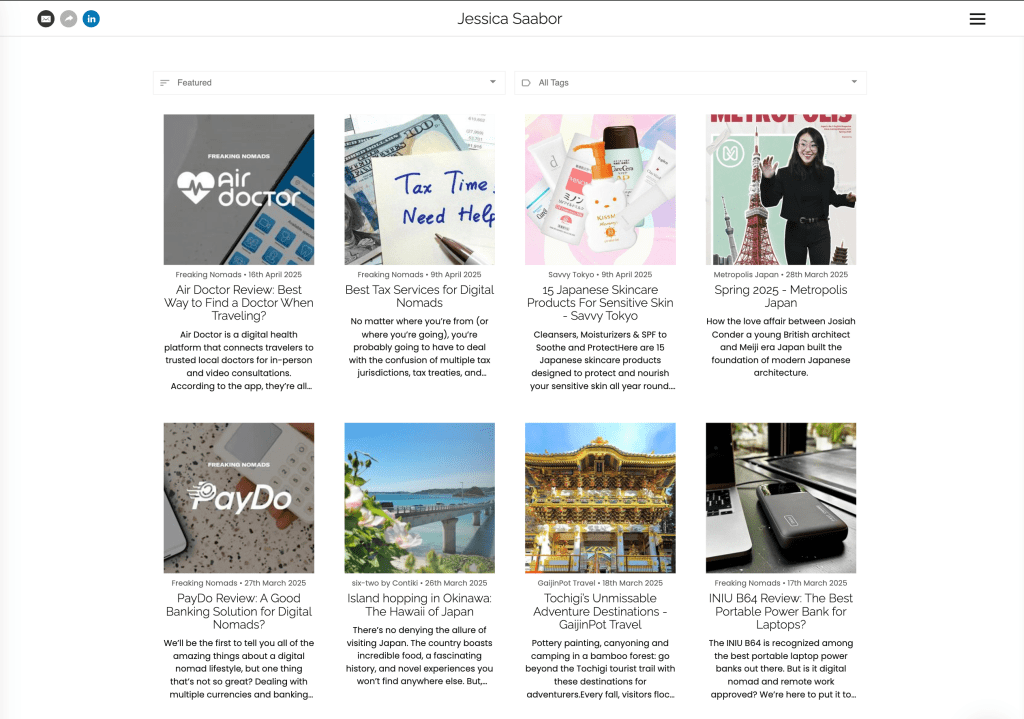
Beyond just an online portfolio, you can also use Journo Portfolio to actually make your entire freelancer website by adding other pages like an ‘About Me’, ‘Services’, and ‘Contact’. Similar to other website builders, Journo Portfolio uses templates and on-page blocks to help you format the page without needing any coding or UX knowledge.


Check Out Journo Portfolio
How Much Does Journo Portfolio Cost?
Journo Portfolio has a few different plans at different price points, including a completely free tier.
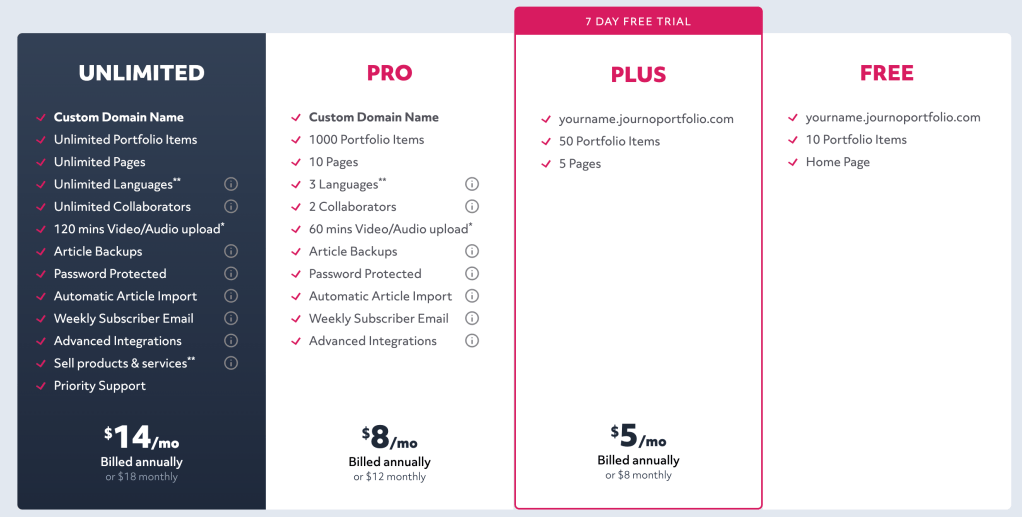
Here are the differences in each subscription level:
Journo Portfolio Free Version
- No cost
- Home page
- Up to 10 portfolio items
Journo Portfolio Plus
- £4/month
- Up to 50 portfolio items
- 5 published web pages (e.g. contact, about me, or services)
Journo Portfolio Pro
- £7/month
- A custom URL
- 1000 portfolio items
- 10 web pages
- Auto-translation into 3 languages
- Backups
Journo Portfolio Unlimited
- £10/month
- Unlimited portfolio items, pages, and languages
- Password protection
- Newsletter features
Reviewing Journo Portfolio as a Freelance Writer
I stumbled across Journo Portfolio after being at my wits’ end with using WordPress for my portfolio. Don’t get me wrong, I love WordPress for hosting this blog and my website, however, constantly updating and reorganising a page for my portfolio left me asking if there isn’t a better way.
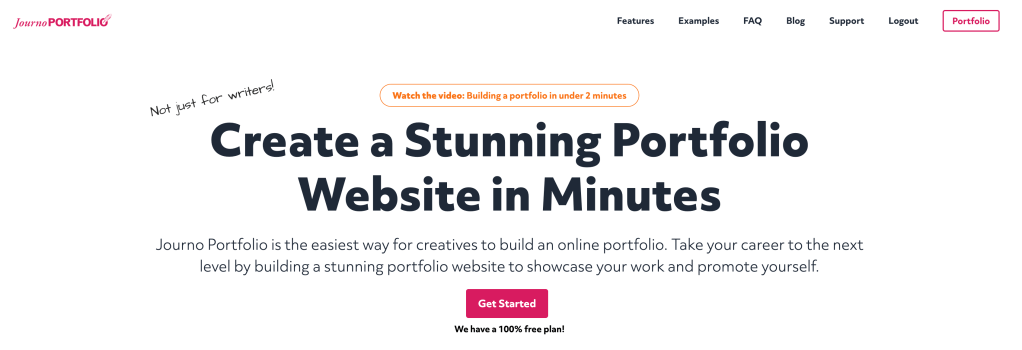
I clicked onto Journo Portfolio and was immediately intrigued by their promise of building an online portfolio in under 2 minutes. Considering that making an account and the basic subscription tier were completely free, I decided to test out their product.
I’ve been testing out Journo Portfolio’s Plus tier for a few weeks now, and here’s what I found:
My Journo Portfolio Review
There’s no denying it, making a simple portfolio on Journo Portfolio really is easy. Before I started messing around with things like pages or tags, I was able to make a basic web portfolio in just a few minutes – Journo Portfolio isn’t lying about that.
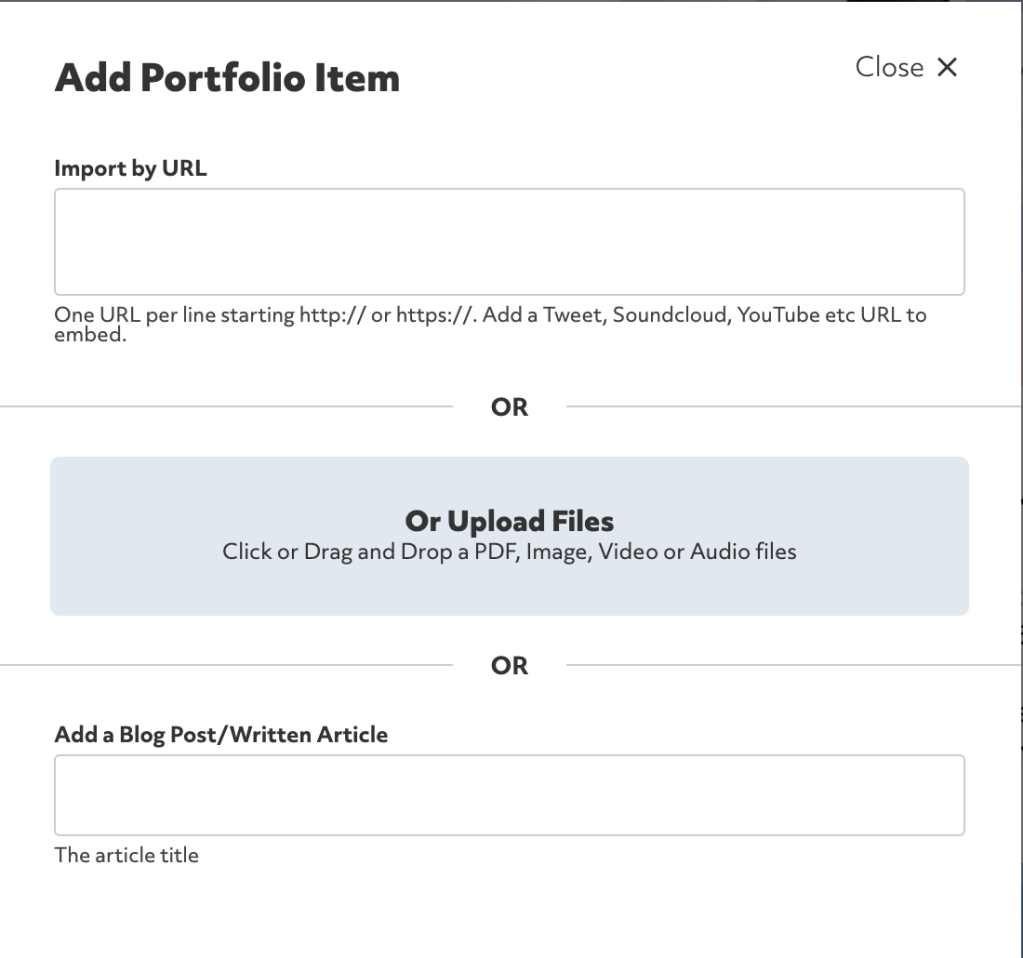
As a content writer, the majority of my portfolio items are URLs to published articles, which I’m used to having to individually add. I’d then have to manually upload and write images and descriptions for each and every item.
With Journo Portfolio, on the other hand, all I had to do was copy and paste the links of my published articles, then hit enter.
The website automatically pulls images, publications, and descriptions for you, as well as arranging the portfolio items aesthetically on the page.
For 90% of items, this automation was flawless, but in a few cases, I noticed that the publication dates were wrong or that Journo Portfolio had pulled my writer’s bio instead of a tagline for the article description. There were only a handful of these small problems, and fixing them was no hassle at all.
When it came to adding pages, things did get a little less straightforward. It took some trial and error to get used to the page editor, although I did like that the templates create initial versions of common pages, e.g. ‘About Me’ and ‘Contact’. Once I figured out how to navigate to the pages, all I had to do was replace the photos with my own and then write my own bio and details.
I decided to use the other pages included in the Plus tier for specialised portfolios, e.g. travel, tech, and Lifestyle content writing. It took some time to work out the best way to do this – adding manual tags to each item and then filtering the articles on each page by the relevant tag – but it wasn’t nearly as confusing as creating new pages on WordPress.
Overall, I think Journo Portfolio is the easiest online portfolio option I have come across. I’ve continued to use it, and love how easy updating it with new published work has been.
Journo Portfolio Features
Diving deeper into Journo Portfolio, there’s a lot more than just the portfolio itself. Here’s a breakdown of Jorno Portfolio’s key features:
Analytics
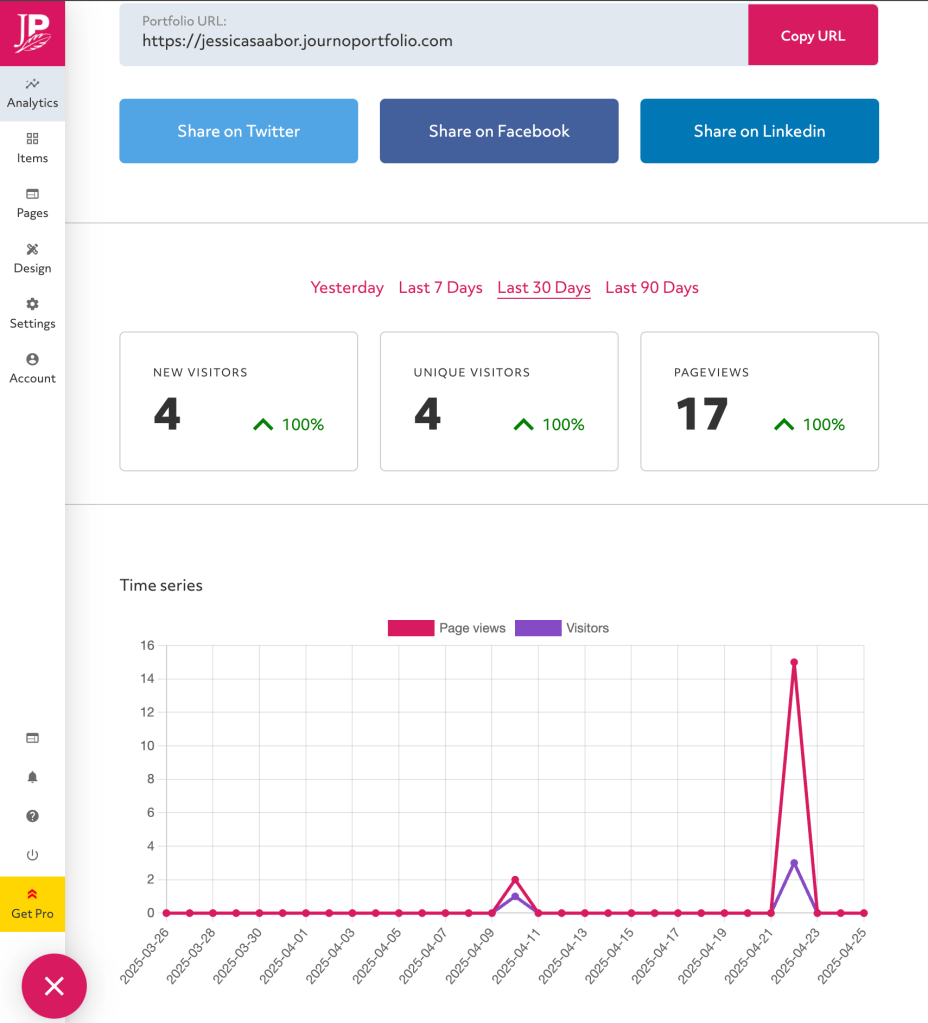
Bear in mind, these screenshots were taken about 2 weeks after creating my Journo Portfolio so I’m limited in seeing the analytics in action.
That being said, being able to track visitors, views, and even things like sources is really interesting. I’m intrigued to watch how these stats change as I start to send out and advertise my Journo Portfolio…although I’ll be using it for cold pitches and freelance applications, so tracking growth is more of a ‘nice to have’ than an actually useful feature in my case.
Automation
This is probably my favourite Journo Portfolio feature. The automation comes in a few forms:
- Auto-formatting inputted portfolio items (e.g. dates, publications, images, description)
- Auto-organising items by filter options like date, feature, or alphabetically
- Auto-adding portfolio items using an article feed (Pro and Unlimited plans only)
Everything worked pretty smoothly for me, with the ability to manually fix any small errors. For my specialised portfolio pages, I used tags and filtered article feeds to automatically add only the articles I wanted (e.g. any article with the ‘travel’ tag to the travel writing page).
I would love if Journo Portfolio replaced the auto-tagging of publication with article/item subject, and kept the publication as a separate item, which portfolios could also be filtered by. Having to manually add my personal tags isn’t the worst thing in the world, but it certainly could be smoother.
Security
To unlock the majority of the security features, you’ll need to upgrade to the Pro or Unlimited plans. If you do have the budget for these premium tiers, though, then you’ll be able to access password protection, backups, and secure links.
The password protection and secure links are an interesting addition as it means privatising certain pages/portfolios to be only accessible to the people that you want to see them. This would be useful for anyone whose portfolio items are private or potentially under NDA and therefore unable to be publicly displayed. The hidden pages also add a degree of professionalism, which some may enjoy.
In terms of backups, the truth is that you can never have too many copies of important work – especially when you don’t own the domain that your work was originally published on. The publications can edit, delete, or move your work at their discretion, meaning an important portfolio item could disappear at any moment…and if you don’t have a backup of your work, then it’s gone forever.
Journo Portfolio will automatically create backups of your work as a PDF or screenshot, and should the original link ever disappear, the site will give you the option to replace it with this backup.
How to Set Up Your Journo Portfolio
I’ve told you that setting up a Journo Portfolio account is easy, so let me show you exactly how easy.
Step 1: Make an Account
Head over to the Journo Portfolio website and click the pink ‘Get Started’ button in the top right corner. This will take you to a quick form to make your account.
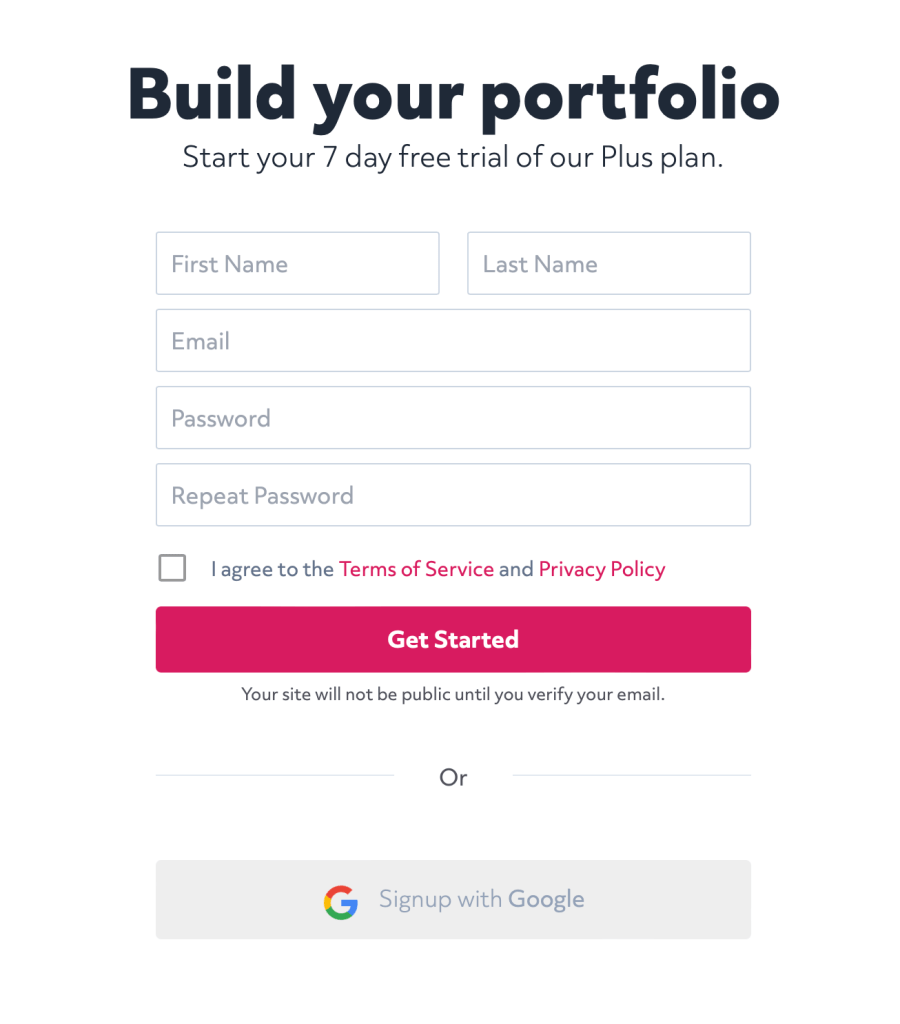
Fill in your details and click ‘Get Started’.
Step 2: Choose a Theme
Scroll through the pre-made options and select the theme that speaks to you the most. Don’t worry, you can always change this at a later date.

Step 3: Set Up Your Portfolio
After your portfolio is created, you’ll be invited to add some details for your portfolio like bio, socials, and a header photo (if applicable to your theme).
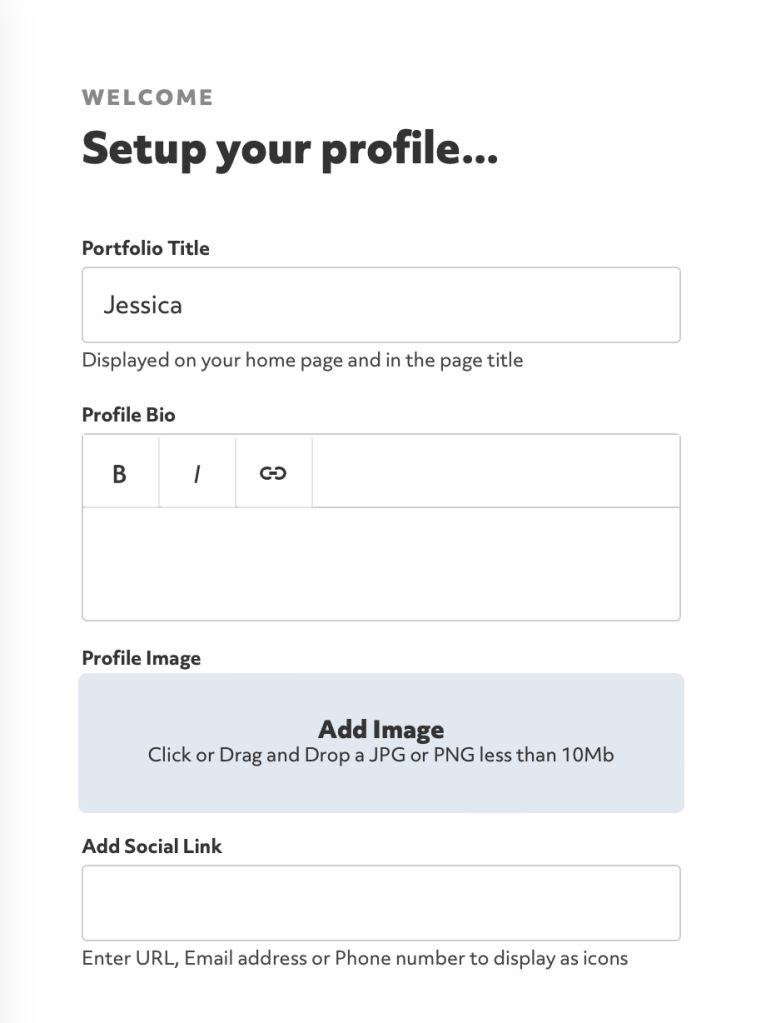
You’ll also be able to choose things like what types of pages you want for your site, colours and fonts.
Step 4: Add Your Portfolio Items
Now it’s time to input your portfolio items. If you’re linking to pages, simply copy and paste them into the ‘Add your URL’ box, using one line per item. For uploaded items, click ‘Select Files’ and select all the documents you want to add.
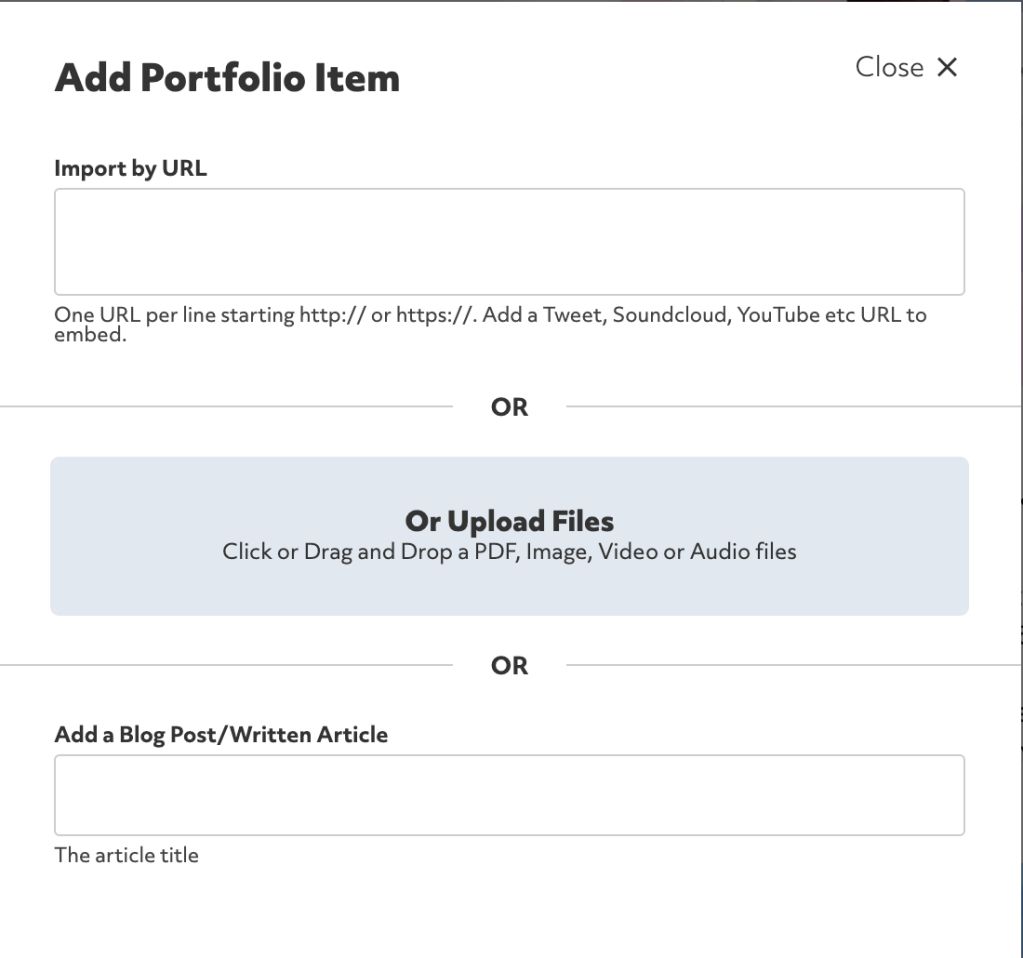
Step 5: Final Touches
After inputting all your items, you can check for any small mistakes, like the wrong dates or descriptions. To edit individual items, hover your mouse over them and click on the little pencil icon.
And…that’s it! It is literally that easy to set up a free Journo Portfolio.
My Journo Portfolio Example
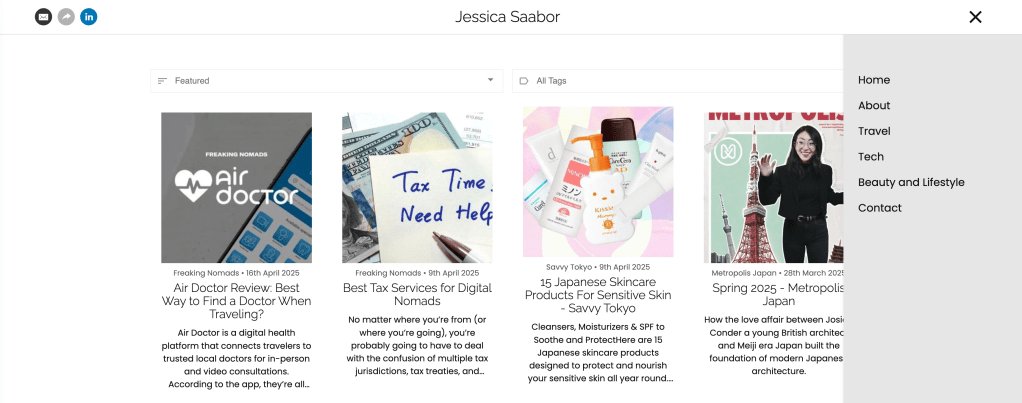
Looking for inspiration? Check out my personal content writing Journo Portfolio!
I genuinely love this site, especially for freelance writers, and have now fully transitioned my content writing portfolio to Journo Portfolio. Don’t believe me? Click the ‘Portfolio’ tab in my navigation bar and see where it takes you…
Other Tools for Becoming a Freelance Writer
If you’re on your freelance writing journey, then you’ve come to the right place. I’m sharing new freelance writing guides, tools, and tips every week to help you develop your own career. Check out a few of these resources below:


 Gone Travelling Productions
Leave a comment