

Note: This post contains affiliate links which I may earn a small commission from, at no extra cost to you.
If you’ve spent any time looking into the world of publishing (or self-publishing), then you’ve almost definitely come across Reedsy. The site is home to an array of resources for writers, editors, and publishers, with professional databases, collaboration tools, and a publishing-specific freelancer marketplace.
Reedsy Studio is their online writing app offering which claims to do everything from planning to writing and even formatting. In this Reedsy Studio review, I’m giving you my honest thoughts on the app and whether or not I recommend it. I’ve also been testing out both paid add-ons to give you a heads up on whether I think they’re worth the investment.
- What is Reedsy Studio?
- Reedsy Studio Features
- Reviewing Reedsy Studio as a Freelance Writer
- How to Set Up Reedsy Studios
- Other Tools for Freelance Writers
What is Reedsy Studio?
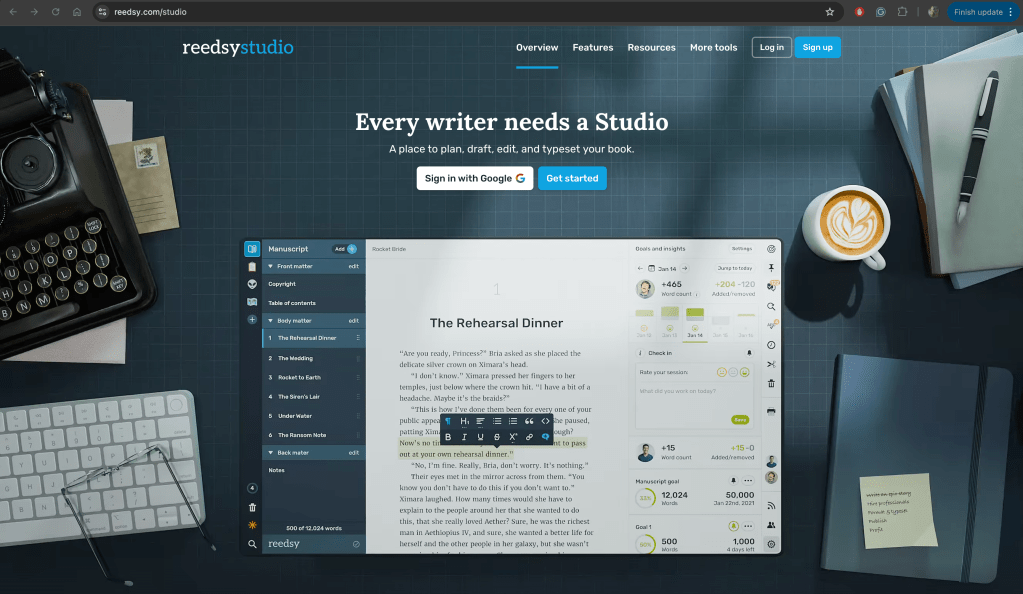
Reedsy Studio is an online writing platform designed for authors of all levels (from total beginners to published pros). You can kind of think of it as a hybrid between Word and Google Docs, all tailored to the specific needs of novel writing.
You can plan, write, and format all in one place, and as Reedsy Studio is cloud-synced, you can also collaborate in real time. Really, the idea is that you can integrate your process with all the other regular Reedsy.com resources in order to find and collaborate with people like editors, proofreaders, sensitivity readers, and cover designers.
Essentially, Reedsy has made the app a one-stop shop for all your writing needs, with this one software being able to take you through the entire self-publishing process.

Check Out Reedsy Studio
Reedsy Studio Features
That’s a lot of potential promises in one app, so let’s dive a little deeper into how you can use Reedsy Studio to actually write, edit, and publish a manuscript.
Right out the gate, I have to acknowledge that there are a lot of totally free Reedsy Studio features. You can absolutely use this app to work on your manuscript without spending a penny. From there, instead of normal ‘tiers’, you can customise your subscription with paid add-ons that best suit your needs.
Here’s a breakdown of the Reedsy Studio features:
Free Reedsy Studio Features
- Advanced manuscript editor
- Import existing manuscript
- Unlimited devices and books
- 30-day writing history
- Basic writing stats
- Read-only public previews
- One manuscript goal
- Export to PDF and EPUB
Reedsy Studio Craft Add-On
- Unlimited history
- Advanced stats
- Custom goals
- Daily check-ins
- Dark mode
Reedsy Studio Outlining Add-On
- Unlimited boards
- Unlimited notes with attributes
- Pinned notes
- List view
- Dark mode
Reviewing Reedsy Studio as a Freelance Writer
Overall, I do enjoy using Reedsy Studio for working on my manuscript. The auto-formatting with indents and chapter separation is really convenient, plus on a purely superficial level, it feels nice to see your book looking like a book…not just pages of text in Word.
I’ve been testing out the premium features, and I do have to say they are nice to have, but definitely not essential. If you don’t need to plan your manuscript in Reedsy Studio and aren’t too worried about extras like writing goals, stats, and being able to access versions of the book from months in advance, then the free version works great.
As a full-time freelance content writer, I’ve tried out a lot of writing platforms, and I have to say, Reedsy holds quite a unique space compared to other apps. It’s absolutely the best when it comes to manuscript writing (particularly if you’re looking to self-publish), but when it comes to other writing needs…this app becomes very limited.
This isn’t a bad thing! Reedsy Studio is made for a specific purpose, and it hits it out of the park. However, if you prefer to do all of your writing in one place (e.g. blogs, social media, poetry, short stories, etc), then this might not be the writing software for you.
For me personally, I like having a separate and dedicated space for my personal novel writing projects. If you’re looking for the same kind of thing, then here’s my Reedsy Studio review:
Reedsy Studio Pros:
- Tailored specifically for the needs of manuscript writing
- Integrated process features to take you from planning to publication
- Simplifies manuscript formatting to be accessible for anyone
- Expansive free features that cover most needs
Reedsy Studio Cons:
- No offline mode
- Some features (including dark mode) are behind a pay wall
- Not the most intuitive UX
Book Planning
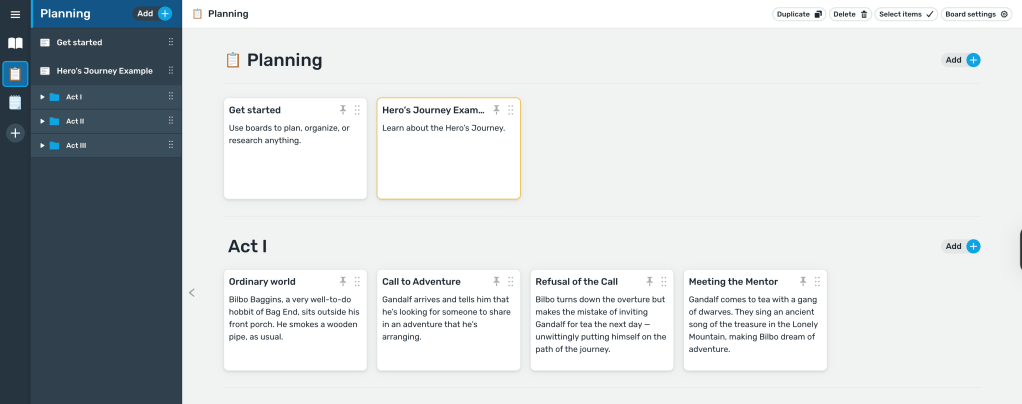
I’ll start by saying, the manuscript planning process is a very personal one and what works for one person might absolutely destroy the creative process for another.
When it comes to Reedsy Studio’s approach, I will say things are a little simple. In the free version, you get a digital board with note cards so you can visually lay out your outline. When you first create a new book, you’ll find the hero’s journey template is already in the planning tab, which can be a helpful resource for some people.
I like that the planning features are there, as it is helpful to switch directly between your book and the outline, but I did have a few issues with them in practice. The user experience is a little clunky and took me some experimenting with to get used to. For instance, if you click a note and then want to go back to the board, you have to click the clipboard icon on the menu toolbar, which didn’t feel very intuitive for me. I also didn’t love that clicking opens a new page altogether.
I think having gotten so used to planning in Notion, or just with physical post-it notes, moving to this slightly less intuitive platform felt tricky at first. The more I played around, however, the more I did come to like the planning feature. It’s nice that you can have different folders, multiple boards, and, as I mentioned before, it really is great to click directly from your manuscript back to the plan.
The Outlining add-ons for planning, like unlimited boards and notes, or being able to pin notes to the top of a board, are somewhat useful, but I wouldn’t say they’re necessarily worth $7.99/month. The biggest plus to the paid add-on for me is the list view, as I like being able to scan over my outline quickly, but again, it’s a nice-to-have, not a need.
Read More:
How to Plan a Novel in One Week
Everything you need to start writing your novel including free outline, character profile, and chapter breakdown templates.
Book Writing
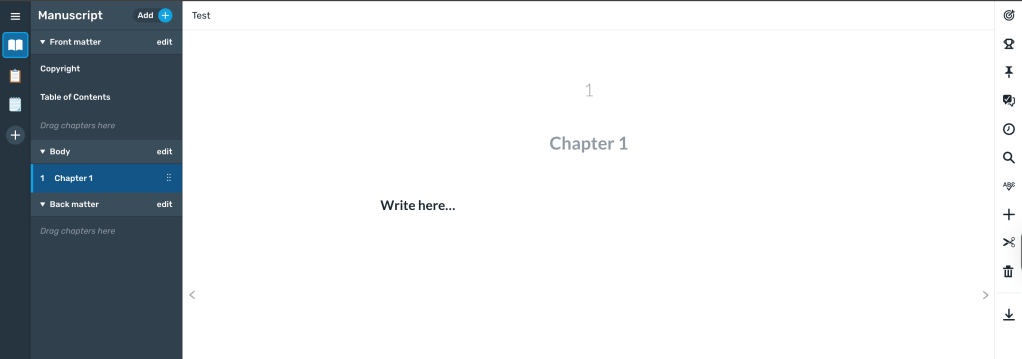
The main event. And I have to be honest, I really enjoy writing in Reedsy. I have to switch between different writing styles and formats multiple times a day, so having this dedicated space to just focus on my personal writing project is such a luxury (which also happens to be free).
I like how the page looks and overall found transitioning to writing in Reedsy Studio to be relatively smooth, e.g, to edit text formats, you just need to highlight the text. The toolbar on the right-hand side has pretty much everything you need for writing, like the spellchecker and search function, and I really loved being able to see my pinned notes there as I wrote (although this is a paid add-on).
On the left-hand side of the page is a sort of contents menu, so you can click around your book easily by chapter. One small thing I didn’t love is that the book organisation is a little limited, for instance, my manuscript has chapters but is also split into three “Parts”. It would be nice to have a way to input these parts as well as the chapters, or other ways to personalise the book layout a little more.
I haven’t experimented with collaboration yet, but I have tried out inviting others to the manuscript to potentially work on it simultaneously, which was a really simple process.
In terms of the Craft add-on, I think the $4.99/month price point is pretty fair. The advanced stats and custom goals will help you take writing more seriously, and the unlimited history could be really important for long, in-depth editing.
Formatting and Exporting
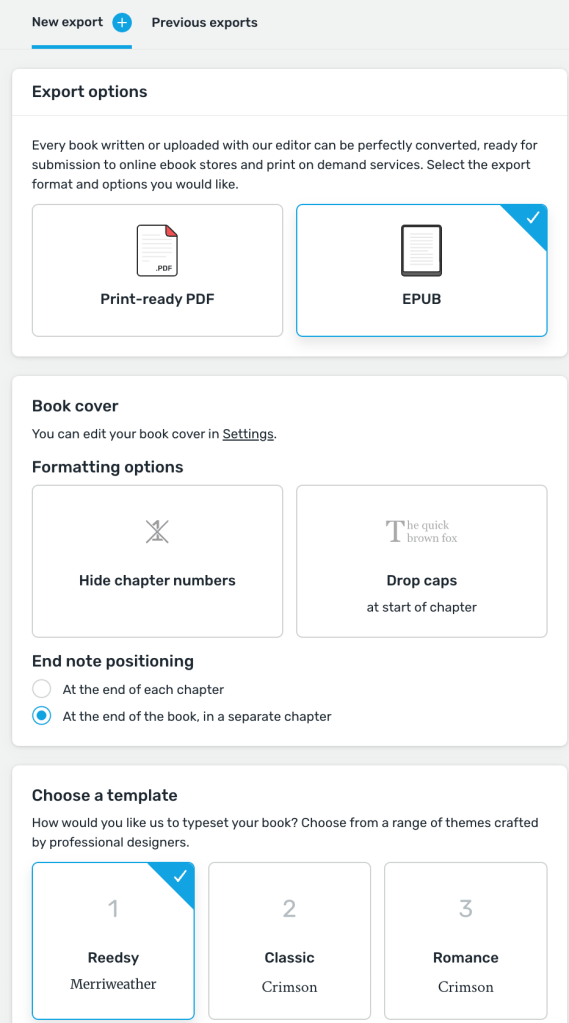
Being honest, I didn’t expect much from the formatting and exporting features of Reedsy Studio, but they’re actually what ultimately sets it apart from other online writing platforms. Immediately, when you go to export the book, you’re given the choice of PDF or EPUB for ebooks.
You can check over your book cover and do some basic formatting, such as deciding on chapter numbers and drop caps, before selecting one of three typeset template options. The process could not be simpler, and yet, the exported product is a fully formatted book manuscript that could be used as-is for self-publishing and ebook uploads. That’s pretty cool.
Oh, and the whole thing is completely free.
They even give you the option to make an editable version of the book as a backup by exporting it as a .docx file.
How to Set Up Reedsy Studios
Step 1. Go to Reedsy Studio
Visit reedsy.com/studio and click “Sign Up” in the top right corner. You can use either your email or a Google account, then jyou ust need to verify your email to be taken to your new Studio Dashboard.
Step 2. Create Your First Project
From your dashboard, click “Create book” or “Import book” to start your first Reedsy Studio project. You’ll be prompted to give your project a name (which can be changed later), and you can also choose the type of project, e.g., fiction, nonfiction, or other.
Step 3. Set Up Your Writing Environment
Once your project is created, you’ll see a sidebar on the left with three icons:
- A Book: Your manuscript for writing and editing your draft.
- A Clipboard: Your planning tab with boards for organising your ideas, scenes, or research.
- The Plus: To add new boards
I recommend starting in the Planning tab to at least get a lay of the land.
Step 4. Add Your First Notes or Boards
The easiest way to start using the Planning tab is to fill in your book’s outline. You can click to edit a note and either use the existing Hero’s Journey outline, or delete all of those and add your own story points split by act.
To create a new note click “Add +” in the top left corner or to the right of the Act headings. To delete a note, click it and then click “Delete” in the top right corner.
Step 5. Start Writing
When you’re ready, open the Manuscript tab. You can start writing immediately, or add new chapters/parts by pressing the same “Add +” button in the top left corner. For the contents page, you can decide if you want it to list contents by chapter titles or headings.
Other Tools for Freelance Writers
If you’re on your freelance writing journey, then you’ve come to the right place. I’m always sharing new freelance writing guides, tools, and tips to help you develop your own career. Check out a few of these resources below:



 Gone Travelling Productions
Leave a comment